Working with the Appeal Card#
Creating an Appeal Card#
To create a patient appeal card, select the item in the tile menu – “Create Appeal Card”.
A form will open
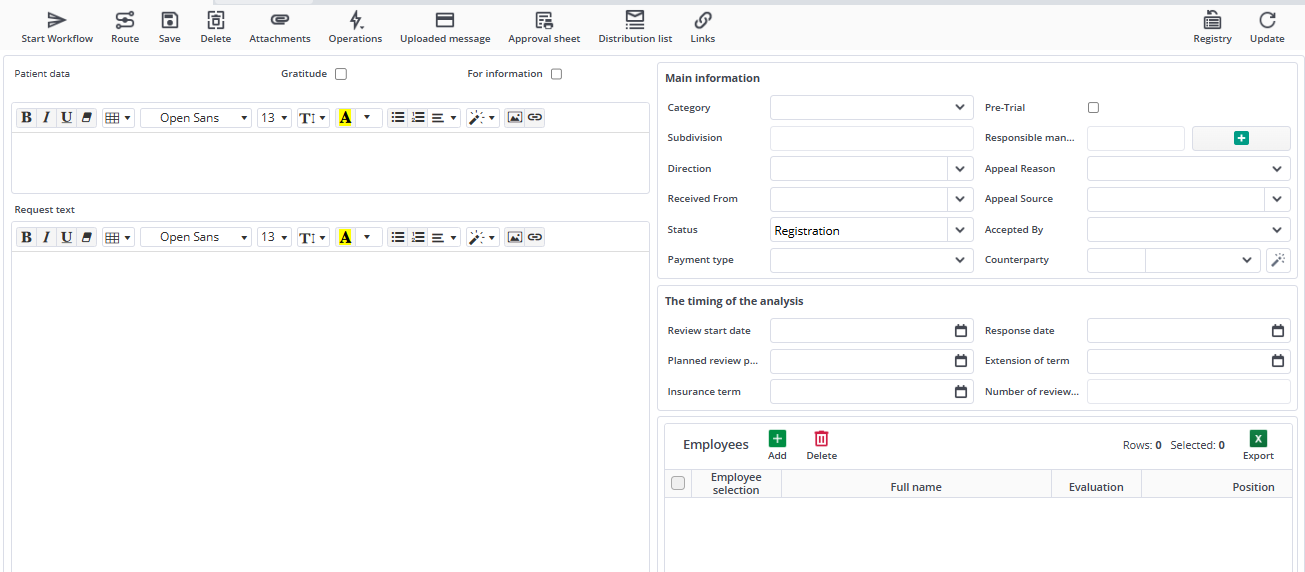
In the opened window, you need to fill in the card fields; let’s consider them by blocks:
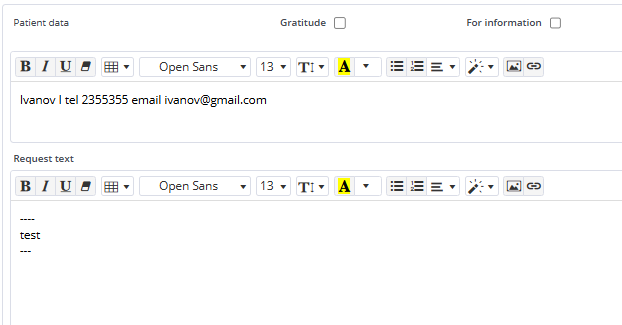
1) «Patient data», «Request text»
2) "Main Information Block"
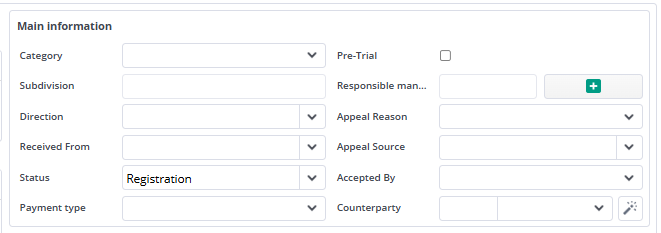
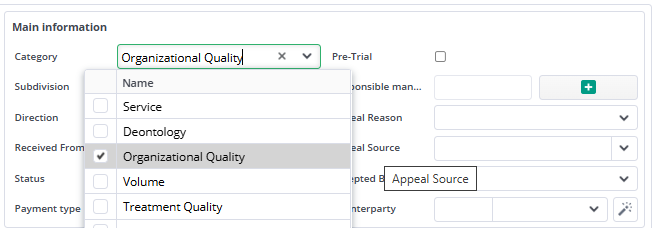
- Category
Select from the “Appeal Categories” dropdown list:
-
Pre-Trial
-
Subdivision, Responsible Manager
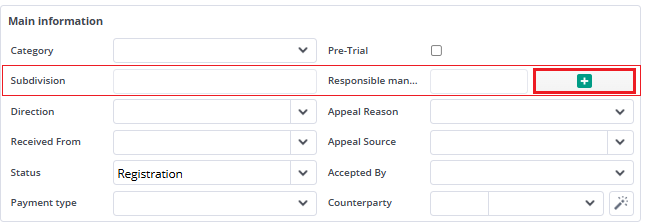
At the second stage, Responsible Managers become participants with the “Accept” action, as well as Branch Managers, via AND for multiple branches;
Responsible Managers are also participants in the “Execute” stage; You can specify multiple divisions and their responsibles if the appeal concerns several branches or departments, using the “Add” button.
To select a subdivision, click the “plus” to the right of “Responsibles”.
Click “Add”, select the required subdivisions from the dropdown list, click the “Responsibles” field (it will auto-fill).
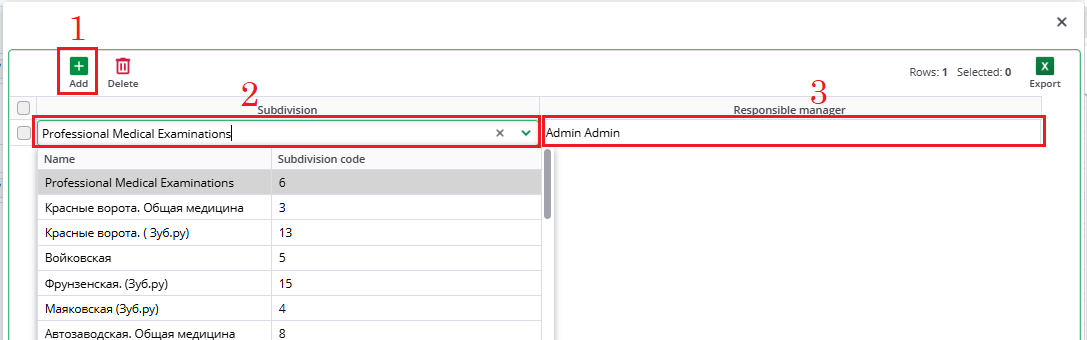
In the “Responsible Manager” field, Chief Physicians of the branch are selected; if there is no such position, an employee with the position of Manager will be selected.
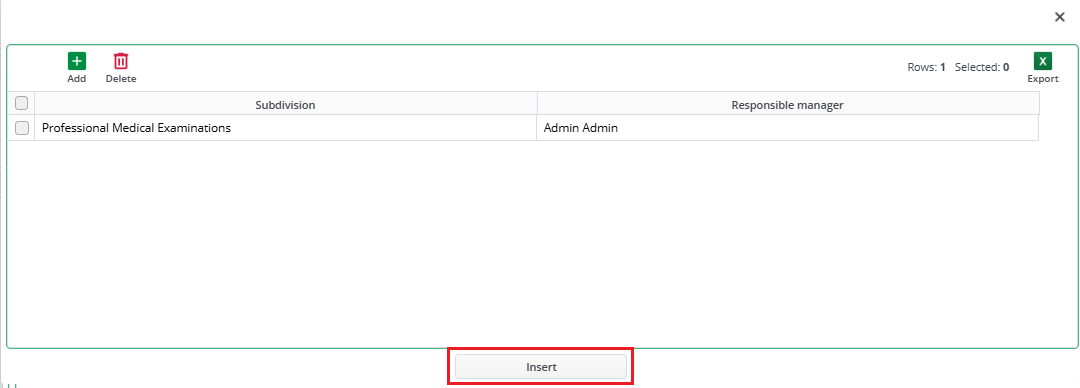
After that, click the “Insert” button.
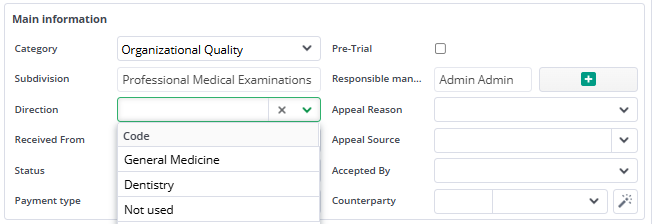
- Direction
Select the direction; Observers are selected depending on the chosen “Direction”.
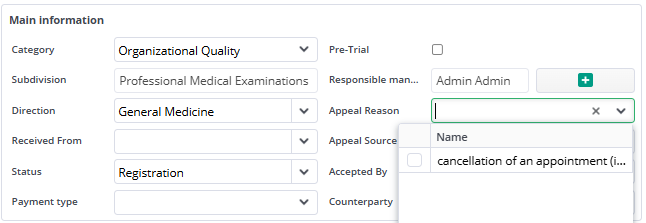
- Reason for appeal.
Selected from the dropdown list.
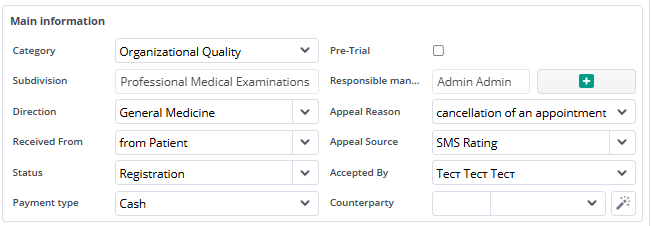
- Received from
- Appeal source
- Status
- Accepted by
- Payment type
- Counterparty – insurance company, if known
For the categories Quality of Treatment and Volume, the route also adds the Expert Physician stage (Conduct expert assessment). If the appeal is from an Insurance Company, the Initiator (accept) is added between Responsible Managers and the Expert Physician.
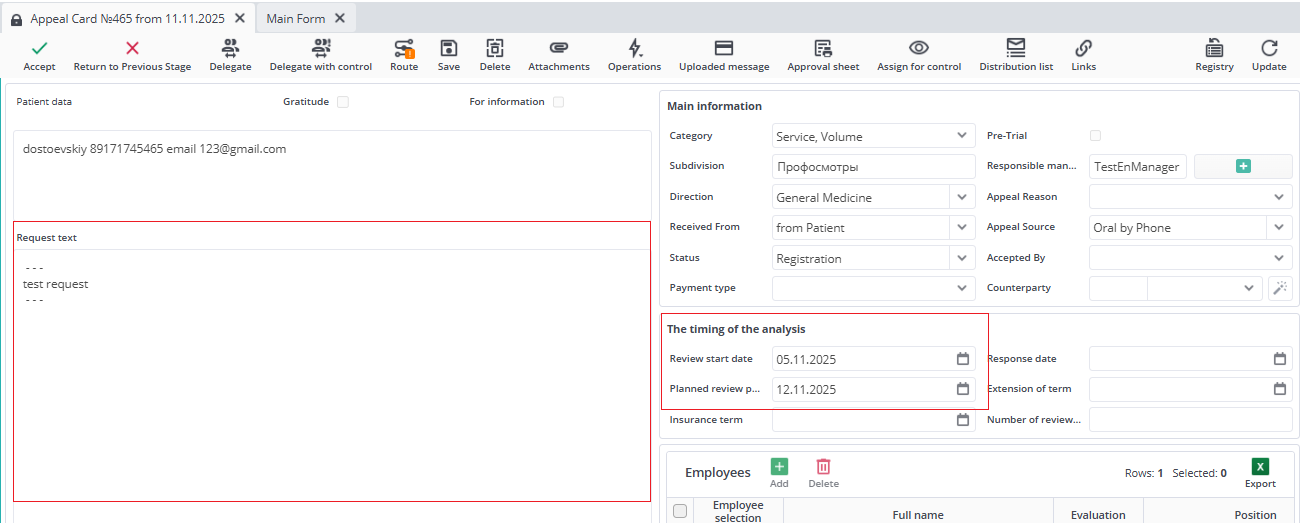
3) In the “The timing of the analysis” block, fill in the “Review Start Date” field. When sending the card along the route, a warning will appear if the field remains empty.
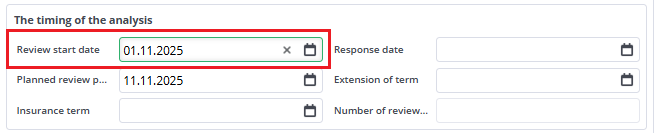
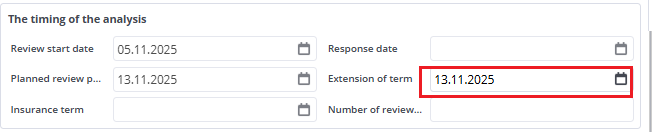
Planned review deadline is 5 working days, excluding the “Review Start Date”; “Deadline Extension” – filled in by the Call Center employee at their stage, by the CC Manager at any stage. When changing the “Deadline Extension” field, the Planned review deadline also changes.
The “Planned review deadline” value is set as the deadline for the route stages by the responsible person.
“Deadline for insurance” – 2 working days, excluding the Review Start Date.
The value is set as the deadline for the stages of reviewing appeals from insurance companies.
The response date is also filled in manually. The number of review days is calculated automatically in working days according to the production calendar.
4) Employees for whom the appeal is issued must be selected in the “Employees” table:
In the “Employees selection” column, a dropdown list of employees from the management structure.
By entering part of the last name, you can filter the search:
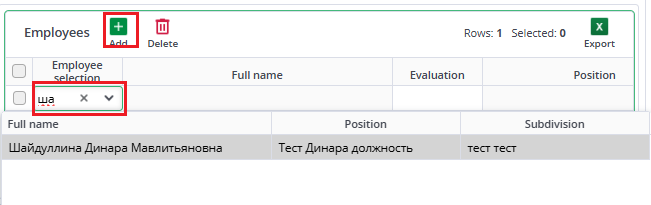
When selecting “Not defined”, the responsible person at the execute stage will need to add a new employee.
5) “Decisions of Responsible Managers” Table
Using the “Load” button, the table is filled with rows for entering decisions and preventive measures for employees and categories
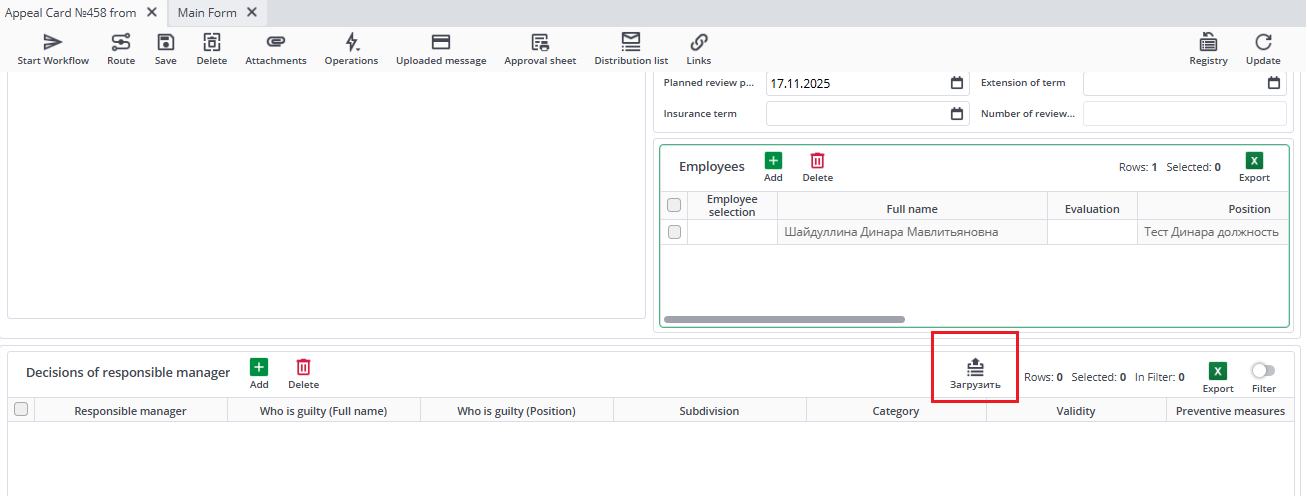
Extra rows can be deleted. Deletion is also available at the “Correct” stage.
Rows in the “Decisions of Responsible Managers” table added by the initiator are not available for deletion by other route participants – Responsible Managers.
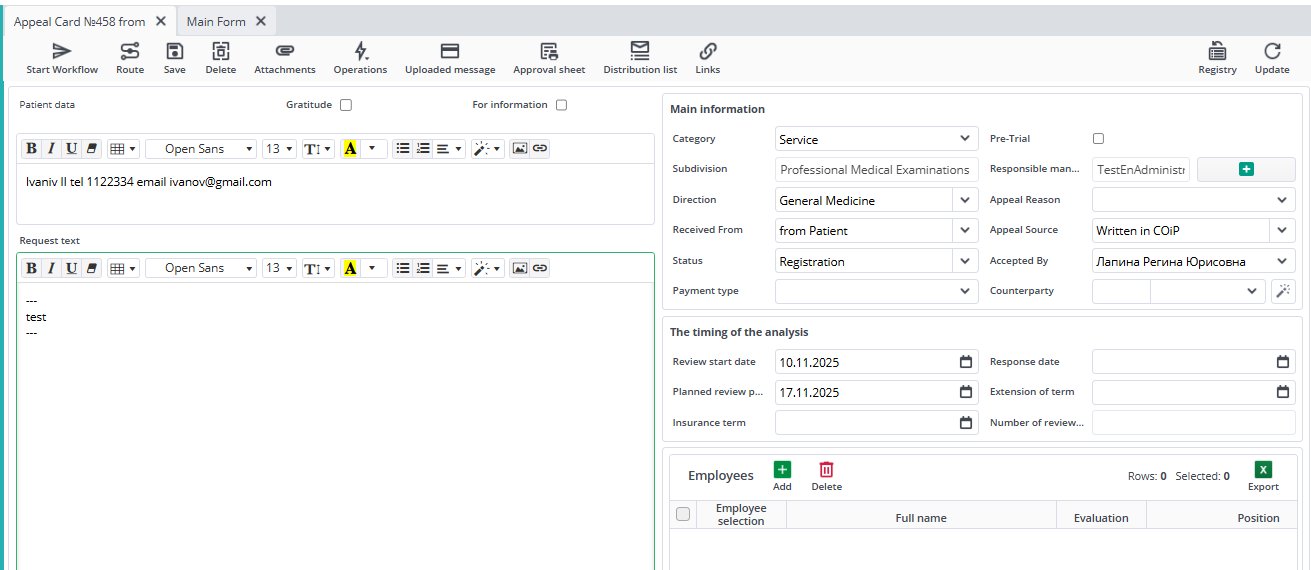
A Contact Center employee always has the option to withdraw the card using the button. 
To extend the review deadline at the request of route participants, it is necessary to fill in the field "Extension of the review deadline".
Role: Responsible Manager#
Description#
Cards for review are located on the main screen in the "Inbox" tab.
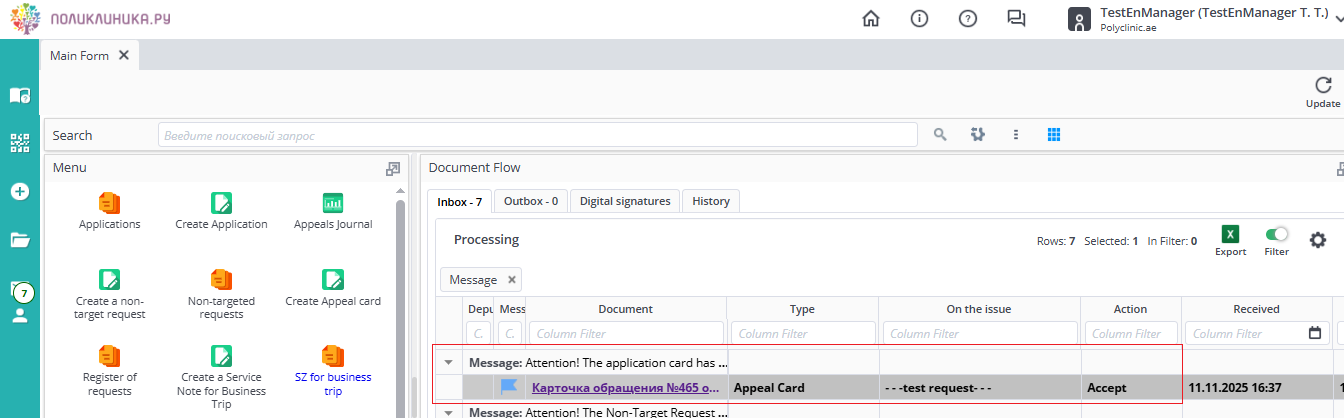
In the request card, the Appeal Text and review deadlines are indicated.
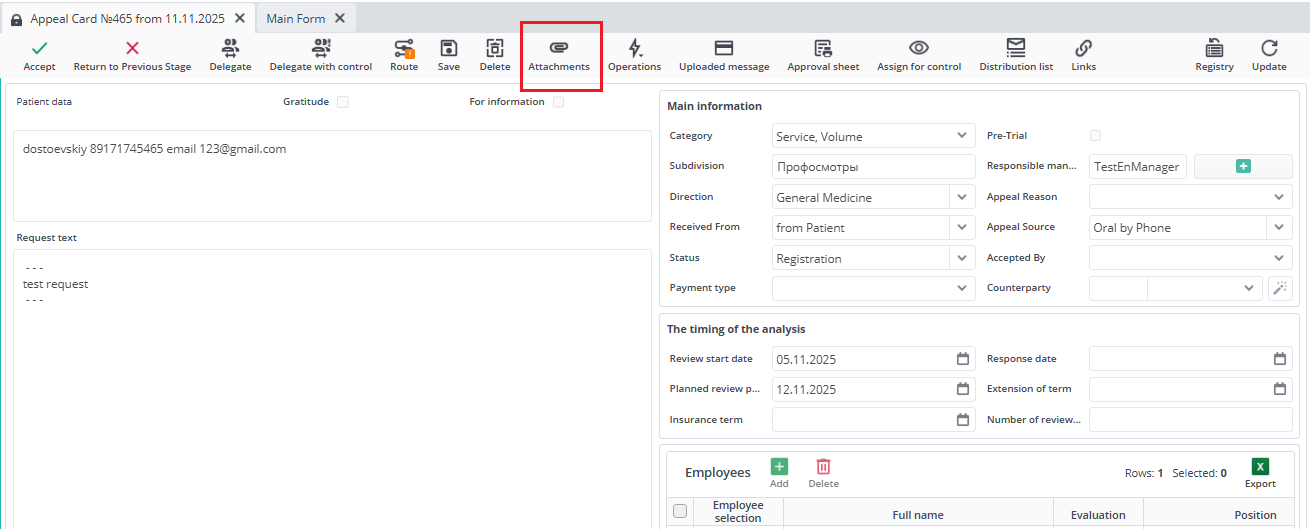
By clicking on Attachments, you can add files related to the review.
Accept#
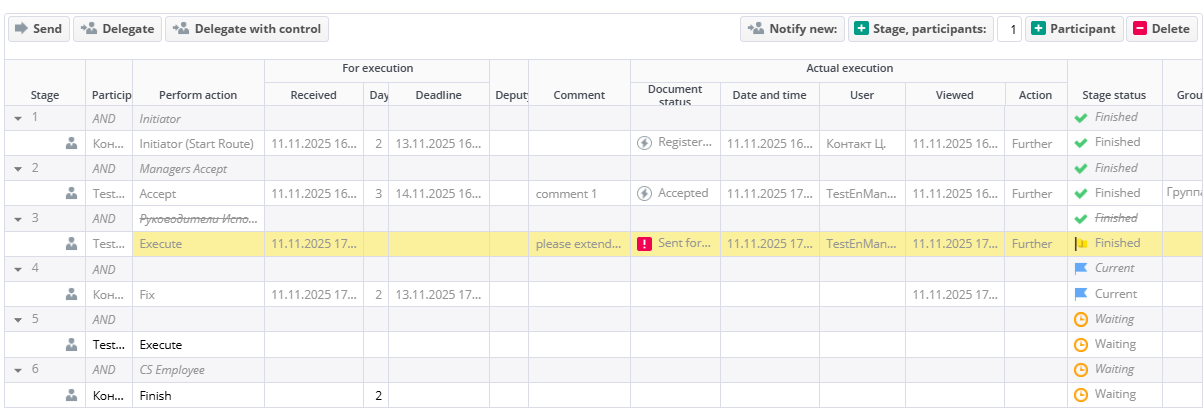
At the "Accept" stage, you can add an employee to the card's route for review with the action "prepare"
To do this, click on the route.
Select the current stage and click Stage participant.
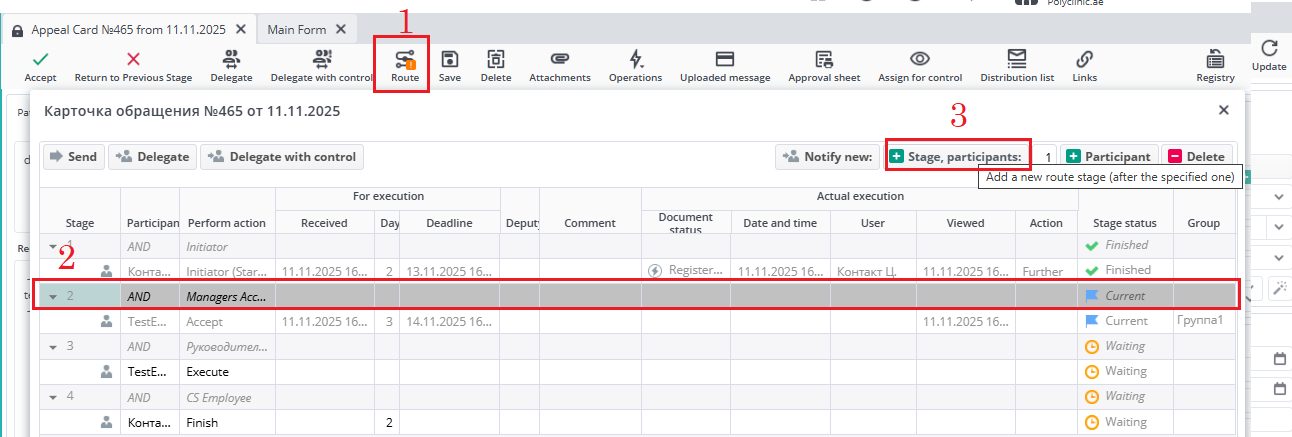
A new stage will be added with an empty field for adding a participant.
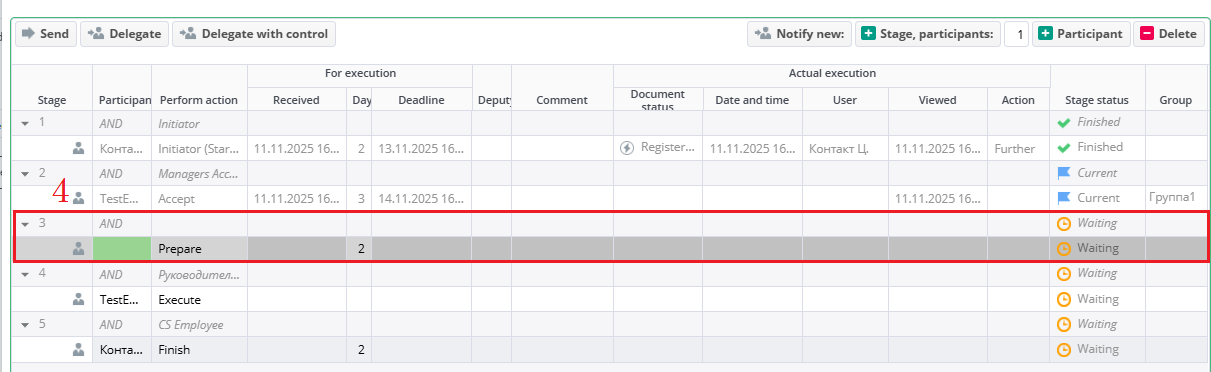
From the dropdown list, select the employee (this field is mandatory).
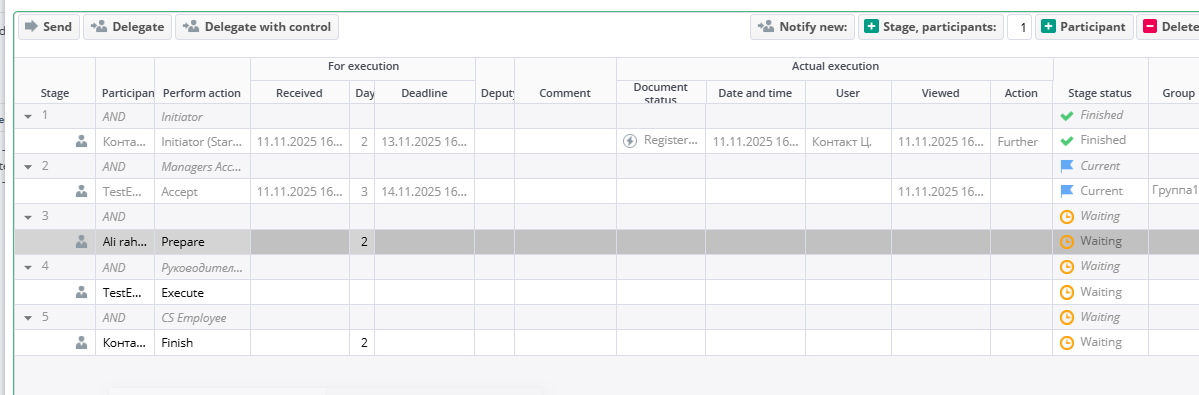
Then click "Prepare".
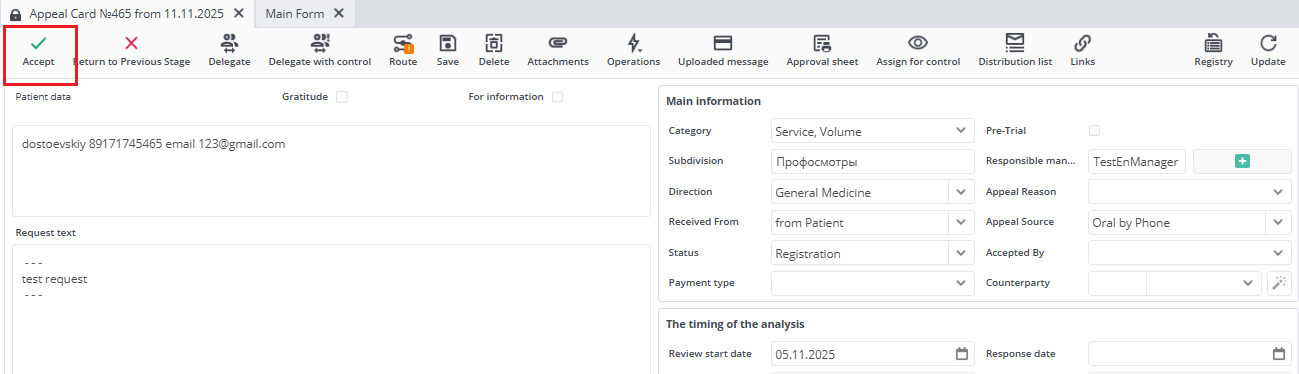
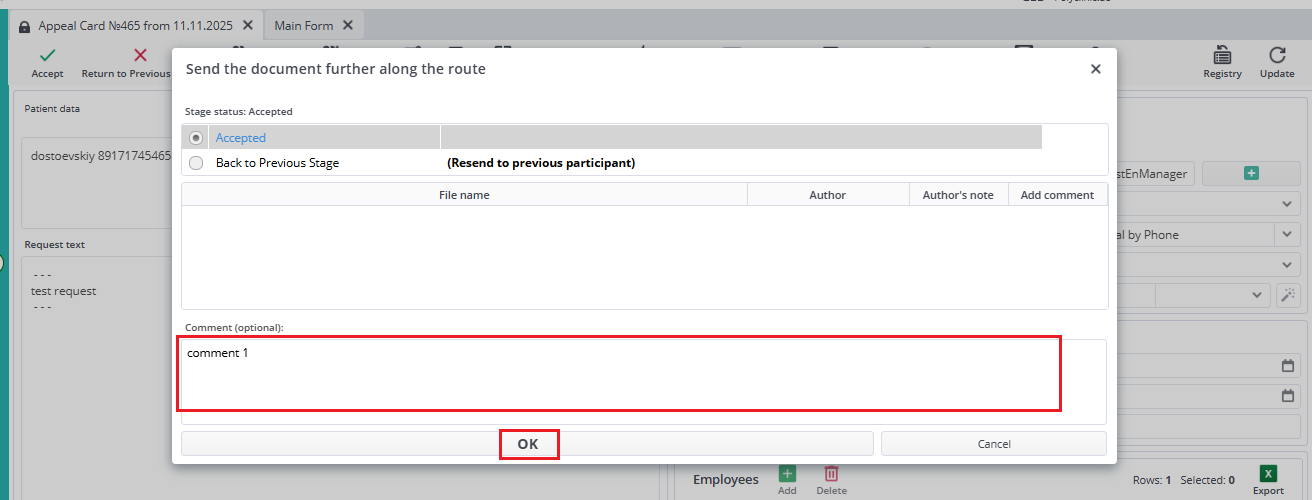
You can add a comment when sending the card along the route.
Execute#
When the card arrives for processing with the action "execute", it is necessary to fill in the table "Decision of the Responsible Manager".
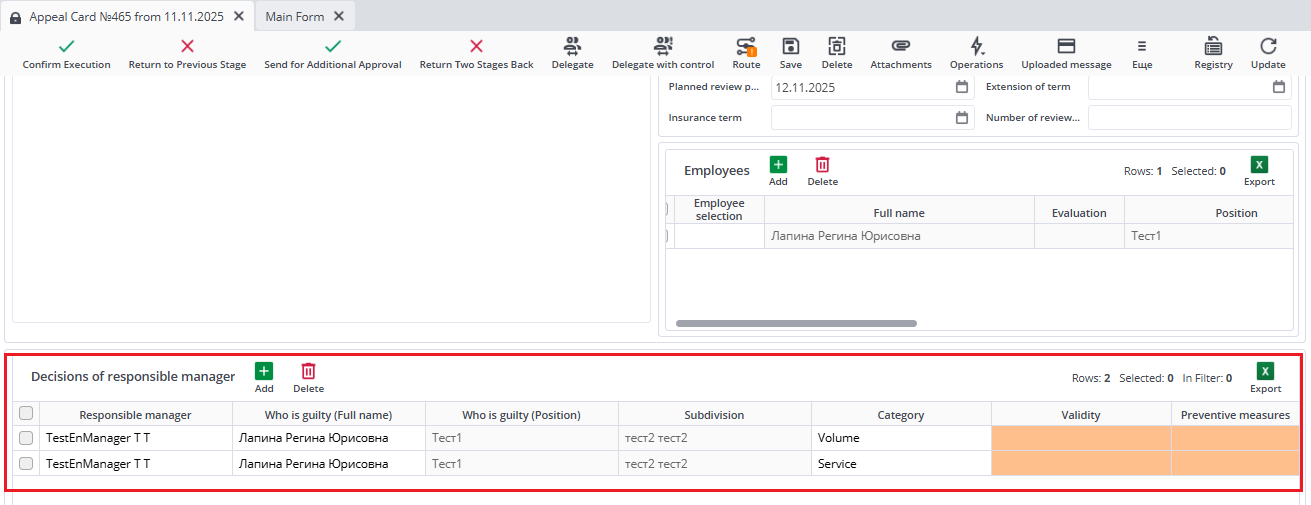
Mandatory fields are highlighted in red depending on Validity.

The field "Who is guilty (Full Name)" is taken from the Employees table; you can add a new employee and then change it to the new one in the "Decision of the Responsible Manager".
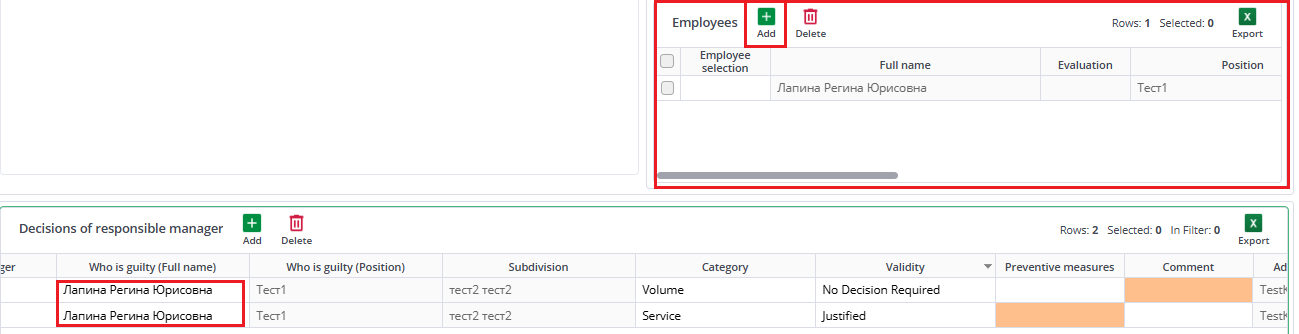
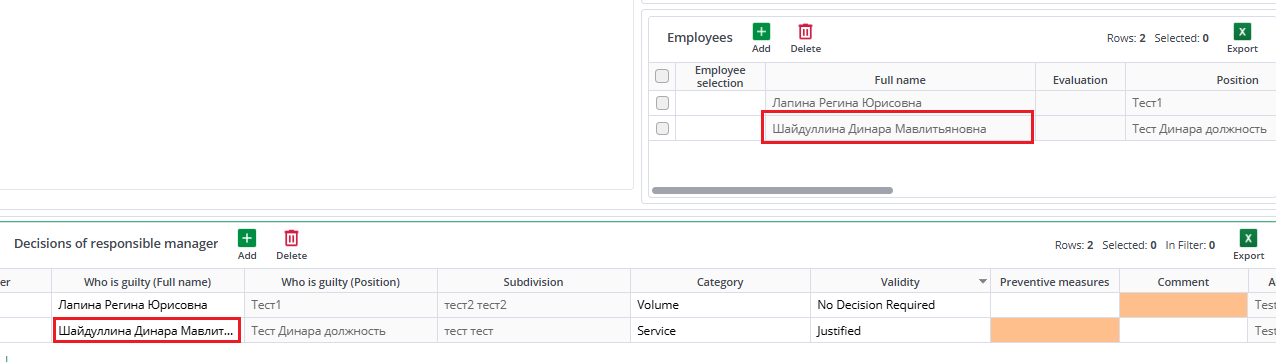
If the employee "Not determined" is specified, it is necessary to fill in the "Employees" form and change the field "Who is guilty (Full Name)" in the "Decision of the Responsible Manager" table to the new participant.
If the review deadlines are approaching the end, you can click to send for revision, adding the corresponding comment with a request to extend the review deadline (excluding appeals from the insurance company).
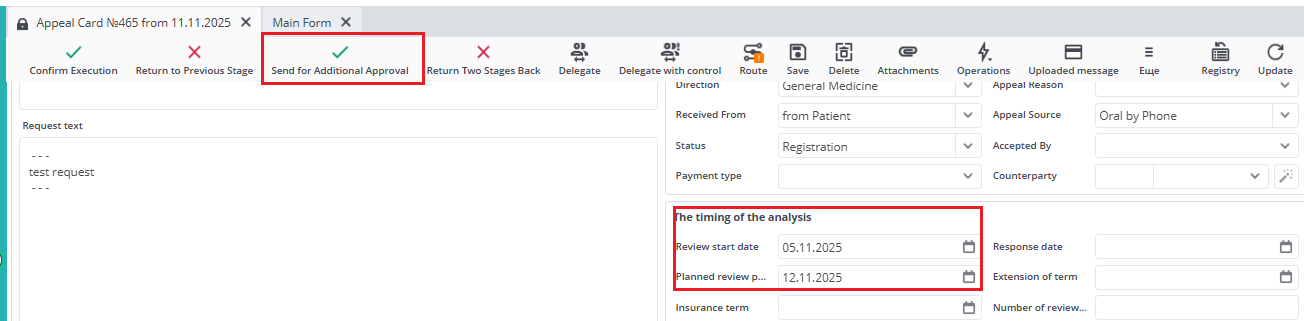
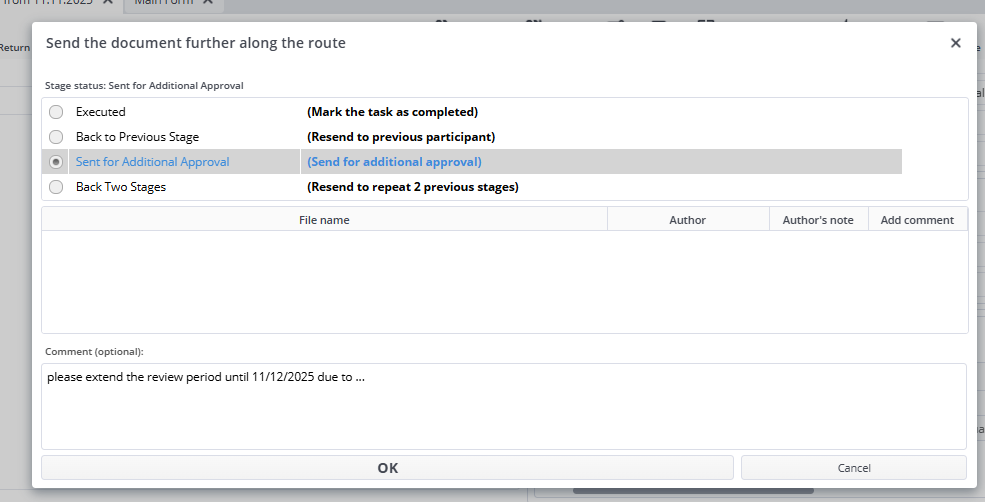
Comments are displayed in the route.